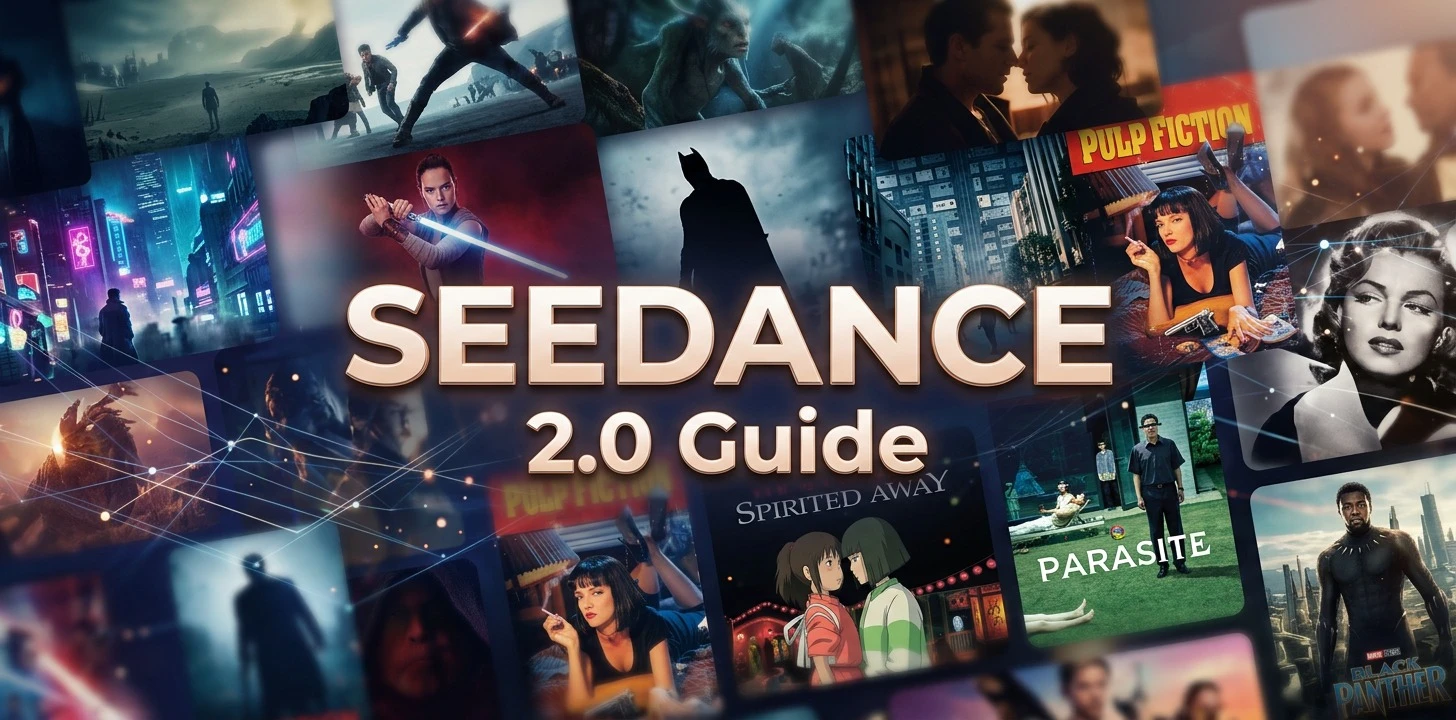
🌊✨ Seedance 2.0 on SeaArt: The Ultimate Beginner's Guide 🎥✨
A colorful, easy-to-understand manual for bringing your imagination to life!
🚀 Quick Intro: Welcome to the easiest, most colorful guide ever made for Seedance 2.0. We are skipping the boring tech talk and diving straight into the fun stuff. Whether you have never generated an AI video before or you just want to get better at it, this guide will show you exactly how to use SeaArt’s incredible video tool. Let’s make some movie magic!
🌟 1. What Exactly is Seedance 2.0?
Consider Seedance 2.0 as your personal, highly talented movie director living inside your computer. Available on the SeaArt platform, it is an advanced AI model that takes simple text descriptions (words) or static pictures (images) and transforms them into stunning, moving video clips.
You do not need to know anything about video editing, camera angles, or special effects. You simply tell Seedance what you want to see, and it does all the heavy lifting. It is designed to be user-friendly, meaning absolute beginners can create professional-looking animations in just a few clicks!
💻 2. Finding Your Way: The User Interface Explained
When you open Seedance 2.0 on SeaArt, you might see a few different buttons. Do not panic! It is much simpler than it looks. Here is what every part of the screen actually does, explained in plain English:
📝 The Prompt Box (Your Wish Box)
This is the big text area where you type what you want. Think of it as writing a letter to Santa Claus, but for videos. If you want a cute fluffy cat drinking coffee, this is where you write: "A cute fluffy cat drinking coffee from a tiny mug."
🖼️ Image Input (Start and End)
Instead of generating a video from nothing, the AI can use a picture as the first frame of the movie. You can even upload a Start image and an End image, and the AI will figure out how to smoothly transition from one into the other!
⚙️ Settings & Parameters (The Magic Dials)
Down the side, you will see buttons and drop-downs. These control how your final video looks:
- Aspect Ratio: Do you want a square video (1:1), a tall video for TikTok (9:16), or a wide video for YouTube (16:9)? You can choose from various options!
- Duration: You can choose your video to last anywhere from 5 up to 15 seconds!
- Generation Mode (Quality): Choose between standard quality (480p) or high-definition (720p, exclusive to VIP users).
- Batch Generation: VIP users have the superpower to generate up to 4 videos at the same time, saving a lot of waiting!
- Prompt Magic: Set this to Auto/On/Off to let the AI automatically enhance your prompt for better results.
- Motion Control: Instead of guessing how things should move, you can upload a reference video and tell Seedance to copy its exact movement!
🛠️ 3. Breaking Down the Main Features
Seedance 2.0 has two main superpower abilities. Let’s explore what they are and how you can use them to create breathtaking art.
💡 Remember: The simpler you keep your instructions, the better the AI understands you at the beginning!
✍️ Text-to-Video (T2V): Making Movies from Words
This feature is exactly what it sounds like. You start with absolutely nothing except an idea in your head. You type that idea out, and Seedance creates a video from scratch.
- Best for: Dreamy scenes, imaginary creatures, or when you have a clear vision but no starting picture.
- How to excel: Be descriptive! Do not just say "a car in a city." Say: "A shiny red sports car driving through a futuristic neon city at night, raining, highly detailed."
📸 Image-to-Video (I2V): Bringing Still Photos to Life
If Text-to-Video is creating life from nothing, Image-to-Video is breathing life into something that already exists. You upload a regular, non-moving photo, and Seedance adds motion to it.
- Best for: Making water flow, adding wind to hair, making clouds move, or animating a character you already generated.
- How to excel: Use high-quality images. If the starting image is blurry, the resulting video will also be blurry.
🎭 Style Presets: Instant Makeovers
SeaArt often includes quick buttons to change the "vibe" of your video. You can click a button to make your video look like an Anime, a 3D Pixar movie, a realistic documentary, or a watercolor painting. Use these if you don't know how to describe art styles in words!
🎨 4. The Secret to Perfect Results: How to Write for Seedance
Writing for an AI is a bit different from talking to a human. The AI is incredibly smart, but it takes things very literally. Here is the ultimate formula to get precisely what you want every single time.
🧱 The Building Blocks of a Great Prompt
Think of your sentence like building a sandwich. You need different layers to make it tasty.
- The Subject: What is the main focus? (A golden retriever dog)
- The Action: What are they doing? (running happily)
- The Setting: Where are they? (through a field of colorful tulips)
- The Lighting/Atmosphere: What is the mood? (sunny morning, bright lighting)
- The Camera Style: How are we looking at it? (slow motion, cinematic view)
Put it all together: "A golden retriever dog running happily through a field of colorful tulips, sunny morning, bright lighting, slow motion cinematic view."
⭐ Pro Tip: Separate your ideas with commas. It helps the AI read your instructions like a checklist!
🚀 5. Your First Creation: A Step-by-Step Walkthrough
Are you ready to create your very first masterpiece? Follow these steps exactly, and you will have a beautiful video in minutes.
🟢 Step 1: Formulate Your Idea
Decide what you want to see. For this example, let's imagine a classic, beautiful nature scene. Do not overcomplicate it.
🟢 Step 2: Open Seedance 2.0 on SeaArt
Log into your SeaArt account, navigate to the generation tools, and select the Seedance 2.0 model from the list of available brains.
🟢 Step 3: Enter Your Instructions
In the main prompt box, type your carefully crafted sentence. Make sure you check your spelling!
🟢 Step 4: Adjust the Magic Dials (Parameters)
- Set your Aspect Ratio to 16:9 (Landscape) so it looks like a movie.
- Select your Duration (5s for a quick scene, up to 15s for a longer take).
- Select your Generation Mode (480p for standard, or 720p if you are a VIP).
- Toggle Prompt Magic to Auto to let the AI help enhance your words!
🟢 Step 5: Click Generate!
Hit the magical 'Generate' button. Now comes the hard part: waiting. Grab a coffee, stretch your legs, and let the AI do millions of calculations to build your video.
🟢 Step 6: Review and Save
Once finished, watch your video! If it looks magnificent, save it to your device. If it looks a little strange, change a word in your prompt and try again.
🧰 6. Advanced Tips Simplified For Everyday Users
Once you have mastered the basics, you might want to try some fancier tricks. Here are a few advanced techniques, explained in the simplest way possible.
🎥 Directing the Camera
You can actually tell the AI how to move its virtual camera! Just add these magic words to the very end of your prompt:
- "Pan left" or "Pan right": The camera turns its head sideways.
- "Zoom in": The camera moves closer to the subject.
- "Zoom out": The camera moves away, showing more of the background.
- "Drone view": The camera flies high up in the sky looking down.
🚦 Controlling the Mess (Mitigating Artifacts)
Sometimes, AI videos look "melty" or things morph into other things weirdly. This happens when the AI tries to do too much at once.
To fix this:
- Use a Motion Reference. If you want a character to dance, upload a video of a real person dancing into the Motion Control tab. The AI will copy the realistic human movement instead of making up its own!
- Keep it simple. Do not ask for a character to run, jump, spin, and eat a sandwich all at the same time. One action per video!
🎬 7. Your Video Prompt Library
Here are 5 carefully crafted video prompts for you to try! You can copy and paste these directly into Seedance 2.0 to see the magic happen. Each one is designed to show off a different strength of the AI.
🟩 Video Prompt 1: Cinematic Nature
"A majestic waterfall cascading down a lush green mountain cliff, golden hour sunlight reflecting off the water, slow motion, hyper-detailed, drone shot moving forward, cinematic lighting."
Why it works: It clearly sets the scene, uses gorgeous lighting keywords ("golden hour"), and gives the camera specific instructions ("drone shot moving forward").
🟩 Video Prompt 2: Neon Cyberpunk City
"A futuristic hover-car driving quickly through a rainy cyberpunk city street, glowing neon signs in pink and blue, wet road reflections, dynamic angle, high contrast, highly detailed."
Why it works: Strong color choices, clear action ("driving quickly"), and specific atmospheric details ("rainy", "wet road reflections") give the AI a rich environment to build.
🟩 Video Prompt 3: Fantasy Character Motion
"A fierce elven warrior standing in a snowy forest, gentle snow continuously falling, strong wind blowing her hair and red cloak, softly looking away, winter lighting, photorealistic."
Why it works: It provides extremely specific but simple movement directions ("snow falling", "wind blowing her hair"), which Seedance excels at animating smoothly.
🟩 Video Prompt 4: The Cozy Macro Shot
"A close-up shot of a dark steaming cup of coffee on a wooden table, thick steam gently rising, cozy cafe background blurred out of focus, warm orange morning lighting, macro lens."
Why it works: Using keywords like "macro lens" and "blurred out of focus" forces the AI to focus on one subject, and subtle movements ("steam gently rising") look hyper-realistic in short videos.
🟩 Video Prompt 5: Abstract Magic
"Glowing liquid colors mixing together in slow motion, bright vibrant neon paints swirling and blending, dark background, abstract fluid simulation, highly detailed, hypnotizing movement."
Why it works: Abstract fluid or smoke movement looks incredible in AI video models because there are no strict or gravity rules the AI could mess up!
⚠️ 8. Five Common Mistakes to Avoid Like the Plague
Even the best of us make mistakes. Here are the top errors beginners make and how you can avoid them:
- Writing a Whole Novel: The AI isn't reading a book. If you write 500 words, it will ignore half of them. Keep your prompts between 10 and 40 words for the best results.
- Using Conflicting Words: Saying "a dark room, sunny outdoors, midnight, morning" confuses the machine. Pick one mood and stick to it!
- Ignoring the Negative Prompt: The negative prompt is your safety net. Always use it! Even a simple "bad quality, distorted" can save a video.
- Giving Up Too Fast: AI generation is like rolling a dice. It might not look perfect the first time. Roll the dice (generate) a few times to get the best result.
- Asking for Perfect Faces Walking Toward the Camera: Historically, AI struggles with faces getting closer to the camera. Side-profiles (looking away) or wider shots usually look much more realistic.
❓ 9. Frequently Asked Questions (FAQ)
Let us clear up any remaining confusion with some rapid-fire answers to common questions!
Q: Do I need a supercomputer to use this?
A: Absolutely not! Because Seedance 2.0 runs directly on the SeaArt website servers, you can use it on a five-year-old laptop or even your mobile phone. SeaArt’s computers do the heavy lifting.
Q: Can I add music to my videos inside Seedance?
A: Yes! Seedance features a built-in Sound toggle. You can turn this on to easily add Sound Effects or Background Music (BGM) directly to your creation without needing another app!
Q: Why did my person suddenly grow a third arm in the video?
A: Ah, the classic AI hallucination! AI understands what a human looks like in a static image, but moving them through space is mathematically difficult. Providing a solid "Start" and "End" image or using a Motion Reference Video usually fixes these strange mutations quickly.
Q: How long can I make my videos?
A: You can choose your video duration right in the settings menu! You can create quick 5-second clips or extend them up to 15 seconds. If you want a longer movie, you simply generate several 15-second clips and stitch them together later.
🏆 10. Bonus Content: Fight Video From Internet To Show Capabilities Of SeeDance 2.0
🏆 11. Final Verdict & Review
We have covered everything from basic buttons to advanced camera moves. So, what is the final word on Seedance 2.0 for SeaArt? Let us look at the pros and cons.
✅ The Pros (What makes it amazing):
- Extremely Accessible: The interface is clean, meaning laypeople can jump in without feeling overwhelmed.
- High Visual Quality: The colors, lighting, and detail it produces are genuinely breathtaking and often look professionally shot.
- Dynamic Flexibility: Being able to do both Text-to-Video and Image-to-Video in the same place is incredibly convenient.
❌ The Cons (Where it needs work):
- Movement Artifacts: Like all AI video models, it sometimes struggles with complex, fast human movements without looking slightly unnatural.
- Length Limits: For those wanting instantly long movies, the short clip limitation requires extra editing work later on.
🌟 Final Score: 9 / 10 🌟
The Verdict: Seedance 2.0 is an absolute triumph for beginners and intermediate users alike. It strikes a beautiful balance between being powerful and being easy to use. While it has the same minor flaws as all modern AI video generators, its ability to easily turn simple words or still photos into captivating motion makes it an invaluable tool for anyone looking to play with AI art. It earns a very solid 9 out of 10. Happy creating!
Generated for SeaArt users – Let your imagination flow! 🌊